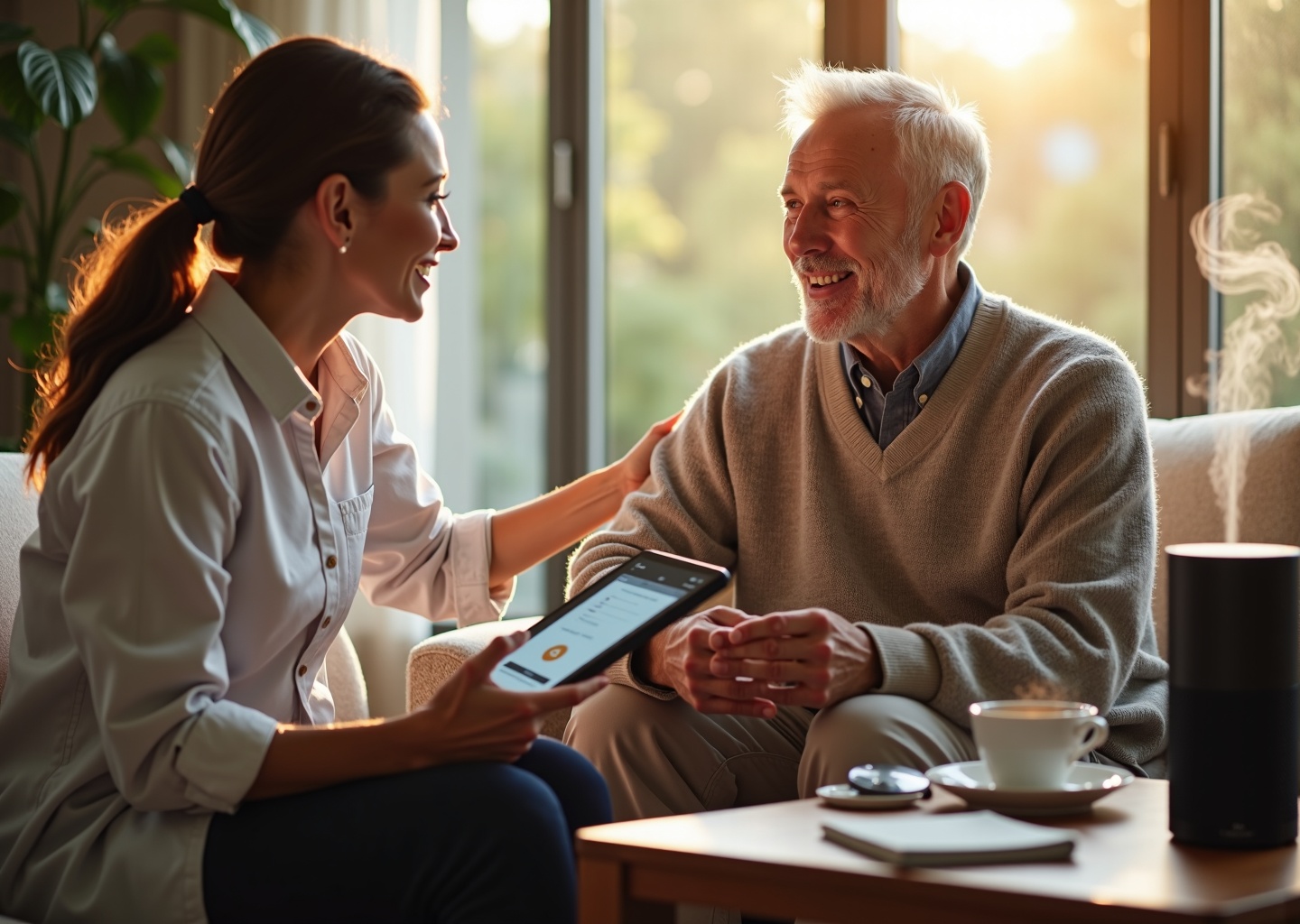
Smart speakers like Amazon Alexa and Google Assistant can become consistent, low-cost partners for daily speech and language practice after aphasia. This article explains why they work, how to set them up safely, concrete exercise routines you can run hands-free, troubleshooting and privacy tips, and practical ways to measure progress at home with caregiver support.
Why smart speakers are a great tool for aphasia home practice
When a stroke or brain injury brings aphasia into your life, the path to recovery can feel overwhelming. Speech therapy sessions are vital, but the real progress often happens in the small moments of practice at home. This is where a simple, everyday device can become a powerful ally. Voice-activated smart speakers, like Amazon’s Alexa and Google Assistant, offer a unique and accessible way to support speech and language practice, bridging the gap between clinical therapy and daily life.
One of the most significant advantages of a smart speaker is its accessibility. After a stroke, physical limitations like hemiparesis can make using a smartphone or computer frustrating. Smart speakers remove this barrier. There are no small buttons to press or screens to navigate; the primary interface is voice. This low motor demand means that a person can practice speaking and access information without needing fine motor skills, promoting independence and reducing reliance on a caregiver for simple tasks.
Consistency is key in rehabilitation, and research consistently shows that the frequency and intensity of practice, often called “dosage,” directly impact recovery. A smart speaker is always available, offering on-demand practice opportunities 24/7. This allows for a much higher dosage of practice than formal therapy sessions alone can provide. A 2023 study with children found that even a few commands a day correlated with improved speech clarity. The device’s patient, non-judgmental nature encourages repeated attempts, creating a safe space to practice without the pressure of a live conversation.
These devices are surprisingly versatile for targeting specific speech and language goals.
- Conversational Turns
Every interaction is a simple back-and-forth. Asking “Alexa, what time is it?” and receiving an answer is a complete conversational exchange. This helps practice the rhythm and structure of conversation. - Naming and Word Finding
Functional tasks like creating a shopping list (“Google, add milk,” “Google, add bread”) provide practical, low-stakes naming practice. You can also use skills or apps that play animal sounds and ask the user to name the animal. - Repetition and Sequencing
You can ask the speaker to repeat itself to practice auditory comprehension or repeat its answers to work on articulation. Creating routines involves sequencing, for example, “Alexa, start my day” could trigger the weather, a news brief, and a favorite song, all in a specific order. - Memory
Using the speaker to set reminders for appointments or medication is a direct way to support memory. Asking questions like “Who was the third president?” or “What’s on my calendar today?” also serves as a cognitive workout.
Beyond the mechanics of speech, aphasia can lead to profound social isolation. Smart speakers can help rebuild connections. Features like Amazon’s “Drop In” or voice calling allow a person to instantly connect with family and friends on their approved list. Imagine being able to easily call a grandchild to say goodnight or “drop in” on a loved one in another room just to chat, all without touching a phone. These interactions reduce loneliness and provide meaningful reasons to communicate.
From a practical standpoint, smart speakers are highly cost-effective. A basic model like an Echo Dot or Google Nest Mini costs a fraction of specialized augmentative and alternative communication (AAC) devices, making it an affordable tool to add to a home therapy program. Furthermore, with features like Voice Match on Google and Voice ID on Alexa, the device can recognize and personalize its responses for different family members, making it a useful hub for the entire household, not just a piece of medical equipment.
It is crucial, however, to understand the role of a smart speaker. It is a tool to complement speech therapy, not replace it. A Speech-Language Pathologist (SLP) is irreplaceable for diagnosing issues, creating a strategic therapy plan, and providing skilled intervention. The SLP can guide you on how to use the speaker effectively, suggesting specific commands, routines, and third-party skills that align with therapy goals. Research supports this partnership; a 2023 study published in Frontiers in Communication found that people with aphasia were interested in using voice assistants to supplement their therapy, not substitute it.
Current research is actively exploring technology-assisted rehabilitation. While some studies note that voice assistants can struggle to understand dysarthric or apraxic speech, this isn’t always a drawback. The effort to be understood can motivate a user to slow down and articulate more clearly, a phenomenon sometimes called speech adaptation. This challenge can become a therapeutic exercise in itself.
Consider a typical home scenario. A person who struggles with word-finding wants to make coffee but can’t recall the word “filter.” Instead of getting frustrated, they can ask, “Alexa, what do you put in a coffee maker?” This interaction not only helps them complete a task but also provides a moment of language practice. Or, a caregiver can set a routine where every morning at 9 AM, the speaker plays a favorite song from the person’s youth, prompting a conversation and memory recall. These small, integrated moments of practice are what build confidence and drive recovery forward.
Getting started and preparing the device for therapy use
Setting up a smart speaker for speech practice is the first practical step toward building confidence and consistency. The goal is to make the technology feel less like a gadget and more like a patient, ever-present practice partner. This guide will walk you through the process, from choosing a device to customizing the settings that matter most for aphasia recovery.
Choosing the Right Device for Your Needs
You don’t need the most expensive model. For speech practice, the most important feature is microphone sensitivity, not speaker quality. The device needs to hear and understand the user, whose speech may be quiet or less clear.
- For most users, a smaller device like an Amazon Echo Dot or a Google Nest Mini is perfect. They are affordable, have sensitive microphones, and are small enough to place anywhere. Research and clinical setups often use these standard models because they are effective and accessible.
- For users who benefit from visual cues, an Amazon Echo Show or Google Nest Hub adds a screen. This can be helpful for seeing timers, lists, or even song lyrics, which can support certain exercises. However, it is not essential for the core speech activities we’ll discuss.
Account Setup and Personalization
A caregiver should lead the initial setup, which takes about 15-20 minutes. You’ll need a smartphone, a Wi-Fi connection, and an Amazon or Google account.
1. Initial Setup:
Plug in the device and download the corresponding app (Amazon Alexa or Google Home) on a smartphone or tablet. The app will guide you through connecting the speaker to your Wi-Fi and linking it to your account.
2. Create a Voice ID (Crucial for Aphasia):
This is the most important step for personalization. Both Alexa’s “Voice ID” and Google’s “Voice Match” train the assistant to recognize a specific person’s unique speech patterns. This helps it adapt and improve its understanding over time, which is vital when speech is affected by aphasia. During setup, the app will prompt the user to say a few phrases. Be patient during this process; it’s okay to take breaks. This small investment of time pays off significantly in better recognition later.
3. Link Family Accounts:
To enable features like calling or announcements between family members, add them to your “Amazon Household” or “Google Home.” This allows the user to easily connect with loved ones, turning the device into a communication hub, not just a therapy tool.
Essential Accessibility and Speech Settings
These settings fine-tune the device to be more patient and easier to understand. Explore them in the device settings section of your Alexa or Google Home app.
- Adjust the Speaking Rate: Slow down the assistant’s speech to make it easier to follow instructions and comprehend information. For Alexa, you can say, “Alexa, speak slower.” For Google, this setting is in the app under Assistant settings.
- Change the Voice: Sometimes, a different voice (male, female, different accent) is easier to understand. Experiment to find one that is clear and pleasant for the user.
- Enable Brief Mode (Alexa): This setting makes Alexa less conversational, often responding with a simple chime instead of saying “Okay.” This can reduce auditory clutter.
- Use Adaptive Listening (Alexa): Found in the accessibility settings, this feature gives the user more time to finish their thoughts before Alexa responds. It’s designed for users who may need extra time to formulate sentences.
- Set Volume Limits: In the device settings, you can set a maximum volume to prevent startlingly loud responses.
Privacy and Managing Your Voice Data
It’s completely understandable to have concerns about privacy. Both Amazon and Google provide tools to manage your data. It’s wise to review these settings together.
How to Review and Delete Recordings:
You can delete recordings with a simple voice command or through the app.
- For Alexa: Say, “Alexa, delete what I just said” or “Alexa, delete everything I said today.” To review your history or set up automatic deletions (e.g., every 3 months), go to the Alexa app: More > Settings > Alexa Privacy > Review Voice History.
- For Google: Say, “Hey Google, delete my last conversation” or “Hey Google, delete today’s activity.” To manage your history, go to the Google Home app: Tap your profile picture > My Activity. Here you can view, delete, and manage auto-delete settings.
For immediate privacy, every smart speaker has a physical microphone mute button on the device itself. When pressed, it electronically disconnects the microphone, and a red light will indicate that it is not listening.
Optimizing Your Environment for Success
Device Placement:
Place the speaker in a central, quiet location like a living room side table or kitchen counter. Keep it at least eight inches from walls and away from other noise sources like a television, fan, or microwave.
Family Practice with Drop In and Broadcast:
Enable “Drop In” (Alexa) or use “Broadcast” (Google) for easy, room-to-room communication. It’s a great, low-pressure way to practice conversational turn-taking. For example, a caregiver in the kitchen can “drop in” on the living room to ask a question, prompting a natural, real-world response.
Power and Connectivity:
Remember, these devices require constant power and a stable Wi-Fi connection to function. They will not work during a power or internet outage. For portability between rooms, you can purchase a third-party battery base for most models.
Safety and Privacy Checklist
- [ ] Have you set up a personalized Voice ID/Voice Match?
- [ ] Have you reviewed the privacy settings in the app?
- [ ] Have you enabled auto-deletion of voice recordings for a set period (e.g., 3 or 18 months)?
- [ ] Does the user know the voice commands to delete recordings (e.g., “delete what I just said”)?
- [ ] Are permissions for features like Drop In set only for trusted family members?
Caregiver’s First-Session Setup Checklist
- [ ] Device is plugged in and connected to Wi-Fi.
- [ ] The user’s Voice ID or Voice Match setup is complete.
- [ ] The assistant’s speaking rate is adjusted to a comfortable speed.
- [ ] The device is placed in a quiet, central location.
- [ ] You have successfully tested a simple command together (e.g., “What’s the weather?”).
- [ ] You have practiced using a deletion command together.
Concrete daily exercises and routines to practice speech language and memory
Turning your smart speaker into a daily practice partner is all about building simple, repeatable habits. When it comes to practice, consistency is more important than length. Two focused 10-minute sessions per day are often far more productive than one long, exhausting 30-minute session. Here is a menu of exercises you can mix and match, designed to strengthen different communication skills.
Naming and Word Retrieval with Custom Flashcards
Therapeutic Goal: Naming, word retrieval, and memory. This exercise helps you practice finding and saying specific words on demand.
You can create your own digital flashcards using Alexa Blueprints. Go to the Blueprints website, select the “Flashcards” or “Q&A” template, and fill it with your own questions and answers. You could create sets for family members, items in the kitchen, or words from your therapy sessions.
- Alexa Command: “Alexa, open My Family Quiz.”
- Sample Interaction: Alexa asks, “Who is your oldest daughter?” You respond with the name.
For Google, you can build a similar experience using Routines with custom responses.
- Google Command: “Hey Google, let’s practice family names.”
- Sample Interaction: The routine triggers a pre-programmed response, “Okay. Tell me my son’s name.”
How to Scale: For mild aphasia, use open-ended questions (“Describe your grandson”). For moderate aphasia, provide choices (“Is your daughter’s name Sarah or Jessica?”) or a sound cue (“Her name starts with ‘S'”). A caregiver can create sets based on personal photos placed near the speaker, turning it into a picture naming task.
Sentence Formulation with Daily Questions
Therapeutic Goal: Sentence formulation, auditory comprehension. This helps you form complete sentences and understand spoken information.
Use the speaker’s basic functions to generate simple conversational topics.
- Alexa/Google Commands: “What’s the weather today?” or “Tell me a fun fact.”
After the speaker responds, the goal is to formulate a sentence about it. If Alexa says, “It’s 70 degrees and sunny,” you could practice saying, “Today is warm and sunny.”
How to Scale: For mild aphasia, practice asking more complex questions (“Why is the sky blue?”) and formulating longer, more detailed responses. For moderate aphasia, focus on repeating the speaker’s answer exactly as you heard it. A caregiver can help by asking a follow-up yes/no question (“Is it sunny today?”) to check comprehension.
Prosody and Rhythm with Music
Therapeutic Goal: Prosody, rhythm, and connected speech. Singing engages different parts of the brain than speaking and can help improve the melody and flow of your speech.
Choose songs that are familiar and meaningful to you.
- Alexa/Google Commands: “Play ‘My Way’ by Frank Sinatra.”
Sing along with the artist. Don’t worry about getting every word right; the focus is on matching the rhythm and intonation.
How to Scale: For mild aphasia, try singing an entire verse. For moderate aphasia, focus on just the chorus or even just humming the melody. A caregiver can sing along with you to provide support.
Sequencing with Functional Routines
Therapeutic Goal: Sequencing, memory, following directions. This exercise helps you practice tasks that involve multiple steps.
You or a caregiver can create a custom routine in the Alexa or Google Home app that breaks down a common task.
- To Set Up an Alexa Routine: In the app, go to Routines, create a new one. Set the trigger phrase like, “Alexa, start my morning coffee routine.” Then, add custom actions where Alexa says each step one by one, like “First, get your favorite mug.”
- To Use: “Alexa, start my morning coffee routine.” Alexa will say the first step. You can say “next” or “continue” after you complete each one.
How to Scale: For mild aphasia, use a routine with more steps or less detail. For moderate aphasia, make each step a very simple, single action. A caregiver can physically lay out the items needed for the task beforehand.
Automating Practice with a “Speech Routine”
Consistency is key. Create a single routine that bundles a few exercises together into a daily session.
- Sample Trigger: “Alexa, begin speech practice.”
- Sample Actions in the Routine:
- Alexa says: “Good morning! Let’s get started. First, tell me today’s date.”
- Alexa plays a specific song for sing-along practice.
- Alexa opens your custom “Kitchen Items” Q&A Blueprint.
- Alexa reads the news headlines for you to repeat.
Recording and Tracking Progress
It’s helpful to see how far you’ve come.
- Recording Sessions: You can connect a phone or tablet to the speaker via Bluetooth by saying, “Alexa, pair Bluetooth” or “Hey Google, Bluetooth pairing.” This allows you to use a voice recorder app on your phone to capture a practice session with clear audio. Listening back can help you identify patterns, and you can share the recording with a speech-language pathologist to track progress.
- Keeping a Simple Log: A small notebook is one of the best tracking tools. For each session, jot down the date, the activity, and a simple metric like “number of attempts,” “successful commands,” or “words produced.” The most important step is to share this log with your SLP. They are trained to interpret these patterns, identify progress, and determine when it’s appropriate to introduce new, more challenging goals.
- Using the Device to Log: For a quick digital log, you can say, “Alexa, add ‘I practiced naming for 10 minutes’ to my To-Do list.” This creates a record you can review in the app. For more advanced tracking, services like IFTTT can be configured to send an email or add a row to a Google Sheet when you complete a routine.
Sample Weekly Plan
A good goal is one or two short sessions per day.
- Morning Session (10 minutes): Start your “Speech Routine.” Ask about the weather. Do one set of custom flashcards.
- Afternoon Session (10-15 minutes): Sing along to two or three favorite songs. Practice a functional routine, like the steps to water a plant. Read a short news summary aloud with the speaker.
Integrating Therapy Apps
If you use speech therapy apps on a tablet or phone, you can connect the device to your smart speaker via Bluetooth. This allows you to use the speaker’s higher-quality audio for listening exercises from the app, which can be especially helpful for auditory comprehension practice.
Frequently Asked Questions common concerns and quick answers
Are smart speakers safe, and do they replace a speech therapist?
Smart speakers are very safe for home use. The main challenges are managing potential frustration and protecting your privacy. But it is critical to understand that these devices do not replace a licensed speech-language pathologist (SLP). Think of a smart speaker as a workout tool, like a treadmill or a set of weights. It allows you to get in valuable practice and repetitions between therapy sessions, but it can’t design the overall recovery plan. Research and user feedback are clear on this, people with aphasia see these tools as a helpful supplement to formal therapy, not a substitute for it.
Why choose an Amazon Echo (Alexa) versus a Google Nest (Google Assistant)?
Both are excellent choices, and the best one often comes down to personal preference. Amazon Echo devices tend to have a wider variety of third-party “Skills,” which are like apps. Some of these are specifically designed for games or exercises that can be adapted for speech practice. Google Nest devices are often praised for their ability to understand more natural, conversational language and for their seamless integration with other Google services like Calendar, Photos, and Maps. If your household already relies heavily on Google, a Nest Hub might feel more intuitive. If you want the largest library of add-on functionalities to explore, an Echo might be the better starting point.
Can smart speakers understand impaired speech? What should I do when it fails?
This is one of the biggest and most valid concerns. The honest answer is that they can struggle. Studies show that standard voice assistants may only recognize speech affected by dysarthria or aphasia about 50-60% of the time. However, this doesn’t mean they are unusable. When recognition fails, try these steps:
- Speak Slower and Louder. Many users naturally adapt their speech, and research shows this simple modification can make a big difference.
- Reduce Background Noise. Turn off the TV, radio, or other conversations during practice sessions.
- Get Closer. Make sure the user is near the device’s microphone.
- Rephrase the Command. If “What is the weather going to be like today?” fails, try a simpler version like “Alexa, weather.”
- Use the App. The Alexa and Google Home apps on a smartphone or tablet allow you to type commands, which is a great backup that keeps the session moving and reduces frustration.
- Explore Adaptive Skills. Look into third-party skills like Voiceitt for Alexa, which is specifically designed to learn an individual’s unique speech patterns over time.
How can we adapt practice for severe expressive aphasia or apraxia?
For users with very limited verbal output, it’s important to start with high-success interactions. A smart display with a screen (like an Echo Show or Nest Hub) is invaluable here, as it allows for visual cues and touch commands. Focus on activities that require minimal speech, such as yes/no questions (“Is your appointment at 10 AM today?”) or forced-choice questions (“Do you want to listen to jazz or classical music?”). A caregiver can also provide a single-word model (e.g., “Music”) for the user to repeat. This is an area where you must consult with an SLP. A therapist can help design a program that is both safe and effective, ensuring the tasks are appropriate for the individual’s specific abilities and goals.
What should we do when the user gets frustrated or confused?
Frustration is a normal part of the recovery process. The key is to have a plan. First, take a break. Don’t push through it. Second, switch to an activity you know will be successful and enjoyable, like asking the device to play a favorite song. This provides a positive experience and resets the mood. Third, simplify the task. If sentence-level practice is causing trouble, pivot to a single-word naming game. Always praise the effort, not just the correct response. Keeping sessions short and ending on a positive note is crucial for long-term engagement.
Can we use multiple languages or dialects?
Yes. Both Alexa and Google Assistant are available in numerous languages and dialects. You can set the primary language for the device in the app settings. This is a fantastic feature for bilingual individuals who want to practice communication in either or both of their languages.
What about common troubleshooting problems?
- Mishearing Words: This is often due to distance or background noise. Move closer, speak directly toward the device, and ensure the room is quiet.
- Background Noise: Smart speakers are always listening. A TV, open window, or side conversation can easily interfere with their ability to hear the wake word or command.
- Connectivity: If the device is unresponsive, check your home’s Wi-Fi network. The simplest fix is often the most effective: unplug the speaker, wait 30 seconds, and plug it back in.
Final thoughts and practical next steps
You’ve learned about the potential of smart speakers and have answers to your biggest questions. Now it’s time to turn that knowledge into action. This journey is about finding what works for you or your loved one, and technology is just one tool in the toolbox. Think of a smart speaker not as a replacement for therapy, but as a tireless practice partner available 24/7. It offers a low-pressure way to increase the frequency of speech practice, build confidence, and regain a sense of independence with daily tasks. The main benefit is consistent, repeatable practice. The limitations are real; these devices are not medical tools and their speech recognition can be imperfect, which can sometimes lead to frustration. But with the right approach, you can maximize the benefits while managing the challenges.
Here is a simple, practical plan to get started safely and effectively.
- Choose Your Device and Do a One-Time Setup.
You don’t need the most expensive model. A basic Amazon Echo Dot or Google Nest Mini is perfect. Once you have it, set aside about 30 minutes for a focused setup session.- Connect the device to your home Wi-Fi.
- Set up a voice profile (Amazon’s “Voice ID” or Google’s “Voice Match”). This helps the device learn a specific person’s speech patterns over time.
- Immediately review the privacy settings in the Alexa or Google Home app. Find the section for voice recordings. You can set them to delete automatically after a certain period (e.g., every 3 months) and opt out of having your recordings used for product improvement. This is a critical step for peace of mind.
- Look through the accessibility settings. You might find options to change the wake word or adjust how long the device listens, which can be helpful.
- Start with a Scripted Two-Week Routine.
For the first two weeks, the goal is consistency, not complexity. Create a simple, written script of 5-10 commands to practice for 10–15 minutes each day. This removes the pressure of thinking of what to say. Keep the script near the speaker. A good starting routine could look like this:- “Alexa, good morning.”
- “Hey Google, what is the weather today?”
- “Alexa, what’s on my calendar?”
- “Hey Google, tell me a joke.”
- “Alexa, play some classical music.”
The repetition helps build a baseline and lets the user get comfortable interacting with the device without feeling overwhelmed.
- Track Simple Metrics and Share Them.
You don’t need complicated charts. A simple notebook will do. For each practice session, jot down the date, the commands you practiced, and a simple success score (like a checkmark for understood, an X for not understood). If a particular word or phrase is consistently difficult, make a note of it. This simple log is incredibly valuable. After a couple of weeks, you’ll have real data to share with a speech-language pathologist (SLP). They can use this information to spot patterns and tailor therapy goals. - Adapt and Progress Slowly.
After two weeks of success with the basic script, it’s time to grow. Don’t overhaul the routine; just add one new thing. If asking for the weather is easy, try a more complex question like, “Hey Google, will it rain in Chicago before 5 PM?” If asking for music works well, try requesting a specific artist or song. The key is to build on success, increasing the challenge just enough to be helpful but not so much that it becomes frustrating.
A speech-language pathologist should always be part of this process. It’s best to discuss using a smart speaker with your SLP before you even begin. They can help you set realistic goals and provide lists of words or sentence structures that align with the current therapy plan. If you’ve already started on your own, bring your progress log to your next appointment. An SLP is essential for interpreting progress, adjusting goals, and ensuring the practice you’re doing at home is productive and safe.
Beyond your SLP, building a strong support network is vital. Look for resources that can help you on this journey. You can search for:
- Specialized Therapy Apps that may offer features to supplement your practice.
- SLP Directories, like the ASHA ProFind tool, if you need to find a qualified professional in your area.
- Community Support Groups for aphasia, stroke, and brain injury survivors. Connecting with others who understand the experience is invaluable for emotional support. Organizations like the National Aphasia Association often have lists of local groups and online forums.
Remember, this process requires immense patience from everyone involved. Recovery is not linear; there will be good days and tough days. Celebrate every small gain. When the speaker finally understands a difficult word, that is a victory worth acknowledging. This journey is as much about emotional resilience as it is about speech.
Stay encouraged and keep practicing. Technology is always changing, so make a habit of checking your smart speaker’s privacy and accessibility settings every few months. New features are added all the time that might make the experience even better. You are taking a proactive step in recovery, and that itself is a powerful part of the healing process.
References
- Use and acceptance of voice assistants among people with aphasia … — This study examines their willingness to use voice assistants and explores which potential applications they consider useful for participation in social and …
- [PDF] Smart speakers are an acceptable and feasible speech practice tool … — Purpose: a record number of children are experiencing speech difficulties. this study explored whether mainstream smart speakers can support …
- Research Opportunities | iamaphasia — Using Alexa to help with communication and cognitive difficulties. Open to adults 18 year or above who have aphasia and/or a cognitive …
- Speech and Language Practitioners' Experiences of Commercially … — This study aims to explore the professional experiences of speech and language therapists (SaLTs) using VAT with their clients to identify the potential …
- Voice Assistive Technology for Activities of Daily Living: Developing … — This study examined the implementation of an online training program using Amazon Alexa voice commands to help adults with cognitive- …
- Voice‐Assisted Technology as a Potential Tool for Addressing … – NIH — Voice‐assisted technology (VAT), such as Alexa, poorly recognises speech difficulties, and this often prompts people to change their speech to …
- Investigating the Accessibility of Voice Assistants With Impaired Users — Efficacy of Alexa, Google Assistant, and Siri for Supporting … Use and acceptance of voice assistants among people with aphasia in Germany.
Legal Disclaimers & Brand Notices
Medical Disclaimer and Limitation of Liability
The content of this article is provided for informational and educational purposes only. It discusses general concepts related to speech and language practice, aphasia recovery, and the use of consumer technology. This information is not intended to be a substitute for professional medical advice, diagnosis, or treatment from a licensed healthcare provider, such as a Speech-Language Pathologist (SLP) or physician. Always seek the advice of a qualified professional with any questions you may have regarding a medical condition, therapeutic plan, or before starting or changing any rehabilitation routine. Reliance on any information provided in this article is solely at your own risk. The authors and publisher are not responsible for any adverse effects resulting from the use of the information contained herein.
Trademark and Brand Acknowledgement
All product names, logos, and brands mentioned in this article are the property of their respective owners. References to specific products, including but not limited to Amazon, Alexa, Echo Dot, Echo Show, Google, Google Assistant, Google Nest Mini, Google Nest Hub, Alexa Blueprints, Voice ID, Voice Match, IFTTT, and ASHA ProFind, are used strictly for identification and descriptive purposes. Use of these names, trademarks, and brands does not imply endorsement, affiliation, or sponsorship by the trademark owners unless otherwise noted.
Affiliation Notice
The publisher and authors of this article are not affiliated with, endorsed by, or certified by Amazon, Google, or any other technology company mentioned.